Fixing Crawl Errors That Kill Your SEO Rankings
Crawl errors are silent killers of SEO performance. When Google's crawlers hit a 4xx or 5xx error on your site, they waste time trying to access pages that don't exist or are returning server errors. The damage accumulates quietly: 30% of websites face crawl errors annually, and 45% of businesses report ranking drops specifically tied to crawl issues. Meanwhile, the average site wastes 30–40% of its crawl budget on duplicate content and broken links, leaving high-value pages undiscovered. The fix is systematic, measurable, and urgent. Here's how to identify and resolve crawl errors before they crater your organic traffic.
Key Takeaways
- 30% of websites face crawl errors annually, causing up to 50% organic traffic loss (Metricsrule, 2025)
- Fixing critical crawl errors increases organic traffic by 20–35% within 3–6 months (Moz/Ranktracker, 2024-2025)
- Server-side errors (500, 503, 429 status codes) now cause 90% crawl drops, not content issues
- Identify Your Crawl Errors via Google Search Console: Use GSC's Pages report to pinpoint undiscovered and unindexed content, then run URL inspections to diagnose the exact error type.
- Prioritize Server Issues Over 404s: Fix 5xx errors and server response codes first — they block Googlebot entirely, whereas 404s are lower priority.
- Audit Your Crawl Budget: Remove duplicate URLs, consolidate parameterized pages, and block low-value URLs to redirect crawler resources to high-value content.
- Clean Your Sitemap and Internal Linking: Ensure every important page is linked internally and present in your sitemap; dead links waste crawl budget.
- Automate Monitoring and Requests: Use tools like Metricsrule or GSC's request indexing to catch errors early and reindex fixed pages within hours.
What Are Crawl Errors and Why Do They Tank Rankings?
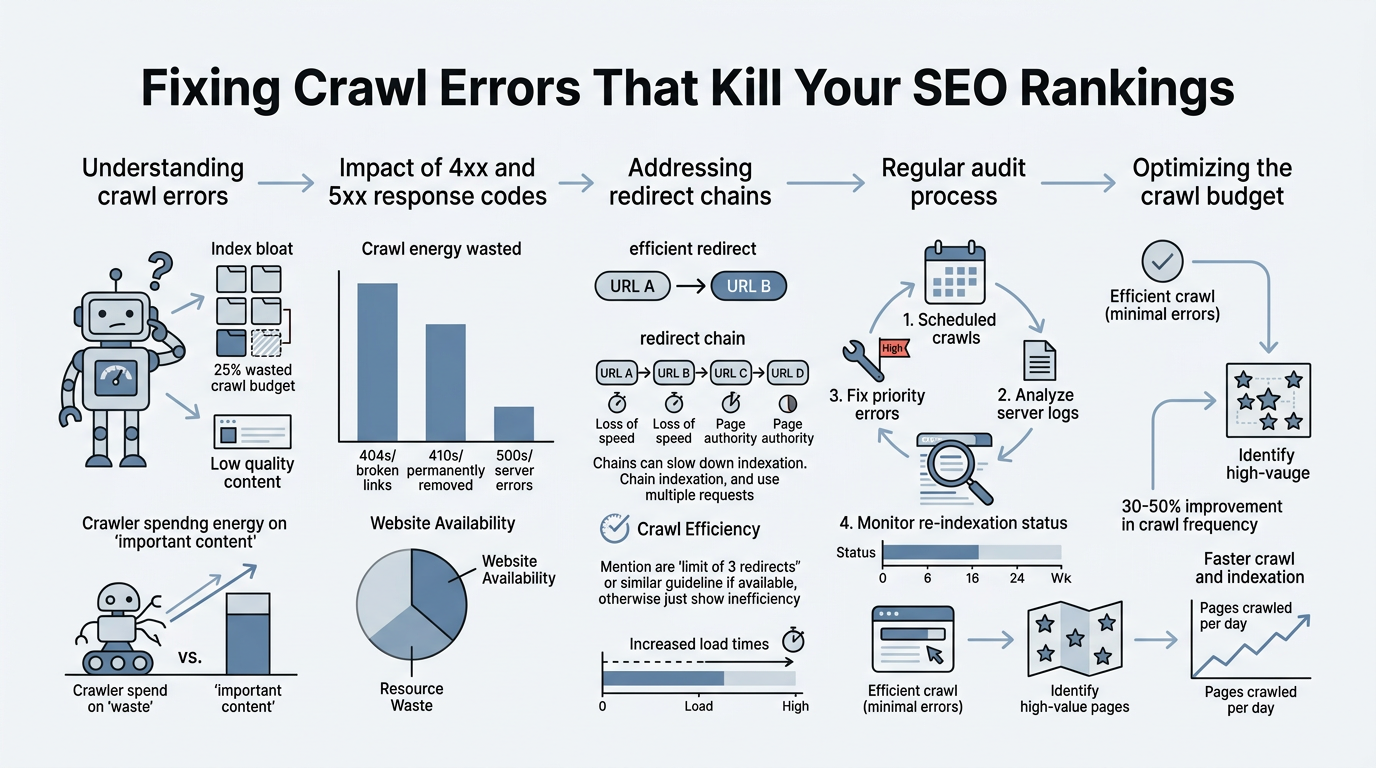
Crawl errors occur when Googlebot attempts to access a page on your site but fails to retrieve it successfully. These aren't philosophical questions — they are concrete technical failures that prevent search engines from reading, indexing, and ranking your content. When Google encounters an error, it marks that URL in Search Console and may skip it entirely, treating it as if the page doesn't exist.
"Crawl budget is finite. Google allocates a limited number of crawl requests per day based on your site's authority and server response time. Every wasted request on a broken page is a request not spent discovering new, high-value content. Over time, this creates a vicious cycle: undiscovered pages don't rank, so they don't generate traffic, so the site's authority stagnates."
The ranking impact is immediate and measurable. 45% of online businesses report ranking drops due to crawl issues, according to recent industry analysis. Here's why: crawl budget is finite. Google allocates a limited number of crawl requests per day based on your site's authority and server response time. Every wasted request on a broken page is a request not spent discovering new, high-value content. Over time, this creates a vicious cycle: undiscovered pages don't rank, so they don't generate traffic, so the site's authority stagnates.
The types of crawl errors fall into three categories. 4xx errors (404 Not Found, 410 Gone) indicate the page doesn't exist. 5xx errors (500 Internal Server Error, 503 Service Unavailable) signal that your server is down or overloaded. Soft errors (timeouts, robots.txt blocks, redirect loops) prevent access without returning a specific status code. Of these, 5xx errors are the most damaging because they suggest site-wide problems that can tank crawl rates by 60% or more.
Server-Side Errors vs. Content Errors: What Actually Kills Rankings
A common misconception: teams spend weeks optimizing content when the real culprit is server infrastructure. Recent analysis confirms that dramatic Googlebot crawl drops—including 90% decreases—result from server-side errors (429, 500, 503 responses) rather than content issues like 404s. This shift in understanding changes your debugging priority completely.
"A 500 error during peak crawl times means Googlebot is hitting your server when it's struggling to respond, and it backs off entirely. Over a week, a persistent 5xx issue can reduce your crawl frequency by 50–70%, making new content discovery nearly impossible."
A 404 error means a single page is gone. That's a minor problem if the page had no value and you've removed the link. But a 500 error during peak crawl times means Googlebot is hitting your server when it's struggling to respond, and it backs off entirely. The bot then tries again hours later, encounters the same problem, and crawls less frequently the next day. Over a week, a persistent 5xx issue can reduce your crawl frequency by 50–70%.
This is why monitoring server logs matters more than you think. Google Search Console shows that errors occurred, but your server logs tell you why and when. If you see spikes in 503 errors during peak traffic times, the issue is server capacity or a software bug, not your SEO strategy.
Crawl Budget Waste: The Hidden Cost
You have a crawl budget. Google decides how many pages to crawl per day based on your site's authority and server response time. A site with good authority and fast servers might get 1,000 crawl requests per day. A slow site might get 100. Either way, every request is precious.
The average website wastes 30–40% of its crawl budget on duplicate content, pagination, and low-value parameter variations. A Screaming Frog analysis found that many sites crawl the same content multiple times via different URL paths (www vs. non-www, http vs. https, different sorting parameters on a product page). Each duplicate wastes a crawl request.
The result: critical new content sits undiscovered for weeks because Googlebot is busy re-crawling the same 50 pages over and over. Once you plug these leaks, crawl efficiency improves dramatically, and new pages get indexed within days instead of months.
How to Identify Crawl Errors in Google Search Console
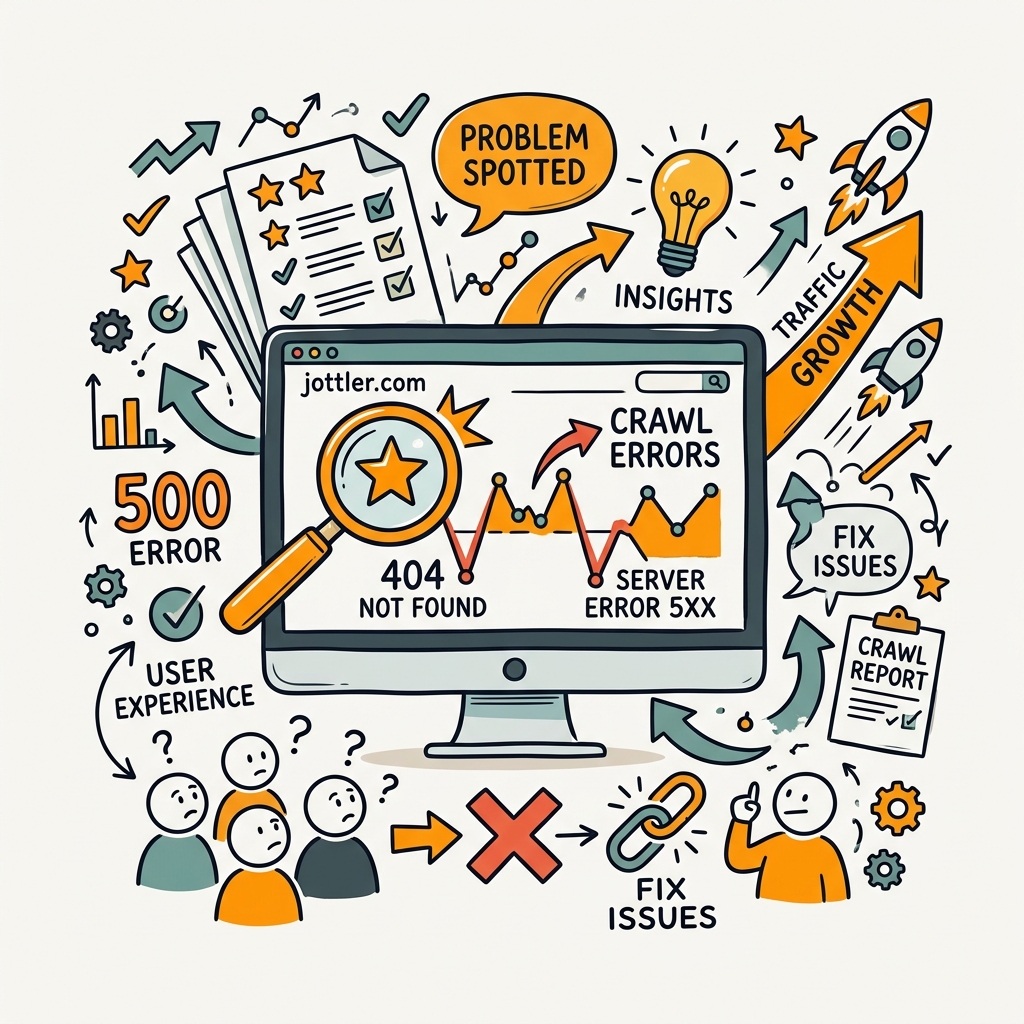
Google Search Console is your primary diagnostic tool. It shows you exactly which pages Googlebot tried to access and what went wrong. The data is real-time and actionable — if you know where to look. Let's walk through it.
Navigate to the Pages Report and Filter by Crawl Status
In GSC, go to Pages. You'll see four categories: Indexed, Discovered (not indexed), Crawled (not indexed), and Uncrawlable. Each tells a different story. Indexed pages are healthy. Crawled but not indexed pages may have indexing blocks (noindex tag, meta robots); these are lower priority. Discovered but not crawled pages are often low-authority pages that Google found but hasn't visited yet. Uncrawlable pages are the red flag — Googlebot can't access them at all.
Click on each category and review the sample URLs. If you see a pattern (e.g., all 404s are from a specific URL structure), you've found your problem. If Crawled But Not Indexed is large, investigate whether you have a site-wide noindex tag or redirect issue.
Use the URL Inspection Tool to Diagnose Individual Errors
For any suspicious URL, paste it into GSC's URL Inspection tool. Click "Test Live URL" and wait for the result. Google will show you:
- Crawlability: Can Googlebot access the page at all?
- Indexability: Is the page blocked by robots.txt, noindex, or a redirect?
- Mobile-Friendliness: Does it render properly on mobile?
- Core Web Vitals: Is it fast enough to rank?
If crawlability fails, GSC will tell you the status code. A 404 means the page was deleted or the URL is wrong. A 500/503 means your server is returning an error. A timeout (no response) means your server is too slow or Googlebot's request was blocked.
Check the Coverage Report for Error Trends
GSC's Coverage tab shows error trends over time. A sudden spike in errors often correlates with a server incident, a faulty redirect, or a recent code change. If you see a sharp increase in "Crawled - not indexed," check your deployment logs. If 404s spike, a URL structure likely changed.
The Coverage report is especially useful after you've made fixes. If you implement a redirect or clean your sitemap, check back a week later to confirm the errors are gone and the success count has increased.
Prioritize and Fix Crawl Errors in the Right Order
You can't fix every error at once. Prioritization is key. Fix errors in this order: site-level issues first (server problems, site-wide blocks), then URL-level issues (dead links, broken redirects), then low-priority 404s. Here's the playbook.
Step 1: Address Server-Side Issues (5xx Errors and Timeouts)
If you see a spike in 500, 503, or 502 errors, your server is in trouble. Check your hosting provider's status page. Is there a known outage? Check your application logs. Is a recent deployment causing errors? If your server is rate-limiting Googlebot (429 errors), configure your firewall to whitelist Google's IP ranges.
Don't assume these errors are temporary. A single 500 error is noise. But a pattern of 5xx errors during the same time window indicates a real problem that's costing you rankings daily. Work with your devops team or hosting provider to resolve it immediately. Server issues trump all other SEO work.
Step 2: Fix Broken Redirects and Redirect Chains
A redirect loop (URL A redirects to B, which redirects back to A) or a redirect chain (A → B → C → D) wastes crawl budget. Googlebot will follow a chain, but each hop is an additional request. On a site with limited crawl budget, a single redirect chain can eat up dozens of daily requests.
Use a tool like Screaming Frog to crawl your site and identify all redirects. Look for chains of 3+ redirects and collapse them. A 301 from old-url.html directly to new-url.html is fine. A 301 chain across multiple domains is a problem.
Step 3: Remove or Fix Orphaned Pages and Dead Links
An orphaned page is one that exists on your server but isn't linked from any other page. It might exist in your sitemap, but if Googlebot can't reach it via internal links, it's wasting space in your crawl budget. Review your Crawled But Not Indexed pages — many are likely orphaned.
The fix: either link to the page from a relevant article (internal link), or delete it. If it's a thin, low-value page, delete it and set up a 301 redirect to a related page. If it's valuable content that should rank, add a contextual internal link to it from a high-authority page.
Step 4: Consolidate Duplicate URLs and Remove Tracking Parameters
E-commerce and SaaS sites often have duplicate content issues. A product page might be accessible via:
- /products/shoes
- /products/shoes?utm_source=email&utm_medium=marketing
- /products/shoes?sort=price
- /shoes (alternative URL structure)
Googlebot crawls all of these, treating them as separate pages. Use canonical tags to tell Google which is the primary URL. For tracking parameters, configure Google Search Console to ignore them in the Crawl settings. For sorting parameters, consider whether they add unique value; if not, block the variations with robots.txt.
Optimize Your Sitemap and Internal Linking Structure

Your sitemap and internal links are crawl highways. A clean, well-organized structure tells Googlebot exactly where your important content is and how pages relate to each other. Neglect this, and Google wastes time on dead ends.
Clean Your XML Sitemap
Your XML sitemap should contain only indexable pages. Remove:
- Dead links that return 404
- Duplicate URLs (include only the canonical version)
- Non-canonical pages (pages with noindex tags or meta robots block)
- Thin, low-value pages (category pages with no products, empty tag pages)
- Outdated content (pages that haven't been updated in 6+ months and don't rank)
A lean sitemap — 5,000 to 10,000 URLs for most sites — is more effective than a bloated one with 100,000 URLs. Googlebot prioritizes quality signals, so a focused sitemap sends a strong signal that every URL is valuable.
Build a Thoughtful Internal Linking Strategy
Internal links serve two purposes: they distribute crawl budget to important pages, and they signal topical relevance to Google. Every important page should be linked from at least one high-authority page (ideally, the homepage or a pillar page). Thin pages shouldn't be buried three levels deep — they should be one or two clicks from the home page.
When you automate your content workflow, intelligent internal linking becomes systematic. The platform identifies topic relationships and recommends relevant internal links as new content publishes, preventing the manual linking mistakes and gaps that accumulate into crawl budget waste. For teams publishing manually, audit internal links with a crawl tool to map link depth (how many clicks from home). Pages deeper than 3 clicks are unlikely to be crawled frequently — relink them from a higher-authority page to reduce depth and boost crawl frequency.
Monitor and Request Reindexing After Fixes
Fixing an error is half the battle. You also need to notify Google that the page is now accessible and ready to be crawled again. GSC's "Request Indexing" button is your tool here.
Use GSC's Request Indexing Feature
After you fix a URL, go back to the URL Inspection tool and click "Request Indexing." Google will prioritize recrawling that page. In most cases, the page is recrawled and indexed within hours. For high-authority pages, sometimes within minutes.
This speeds up recovery dramatically. Without requesting indexing, you might wait weeks for Googlebot to naturally revisit a fixed page. Requesting indexing collapses that timeline to days.
Set Up Ongoing Monitoring
Don't fix crawl errors once and forget about them. Errors will return — new features break, servers go down, links rot. Set a calendar reminder to audit crawl errors every 30 days.
For each audit, check:
- GSC Pages report — any spike in new errors?
- Server logs — any 5xx spikes during crawl times?
- Crawl budget trends — is Googlebot crawling more or fewer pages?
- Newly indexed pages — are your recent additions showing up?
If you notice a new issue early, you can fix it before it cascades into a ranking drop. Many competitors wait until they see traffic decline to investigate — by then, the damage is months old.
Cross-Reference with Google Analytics and Server Logs
GSC data is authoritative, but it can occasionally have glitches. In October 2025, Google experienced a temporary reporting issue where crawl data appeared to vanish from Search Console for some properties. The actual crawling was happening — it was just a visual bug. That's why you should verify critical crawl claims with your server logs and Google Analytics.
Check GA4 for Googlebot traffic. If GA4 shows consistent Googlebot sessions but GSC shows no recent crawl data, you know it's a reporting glitch, not a real crawl drop. Server logs provide the ground truth — they show every request Googlebot makes, including status codes and response times.
Avoid Common Crawl Error Mistakes
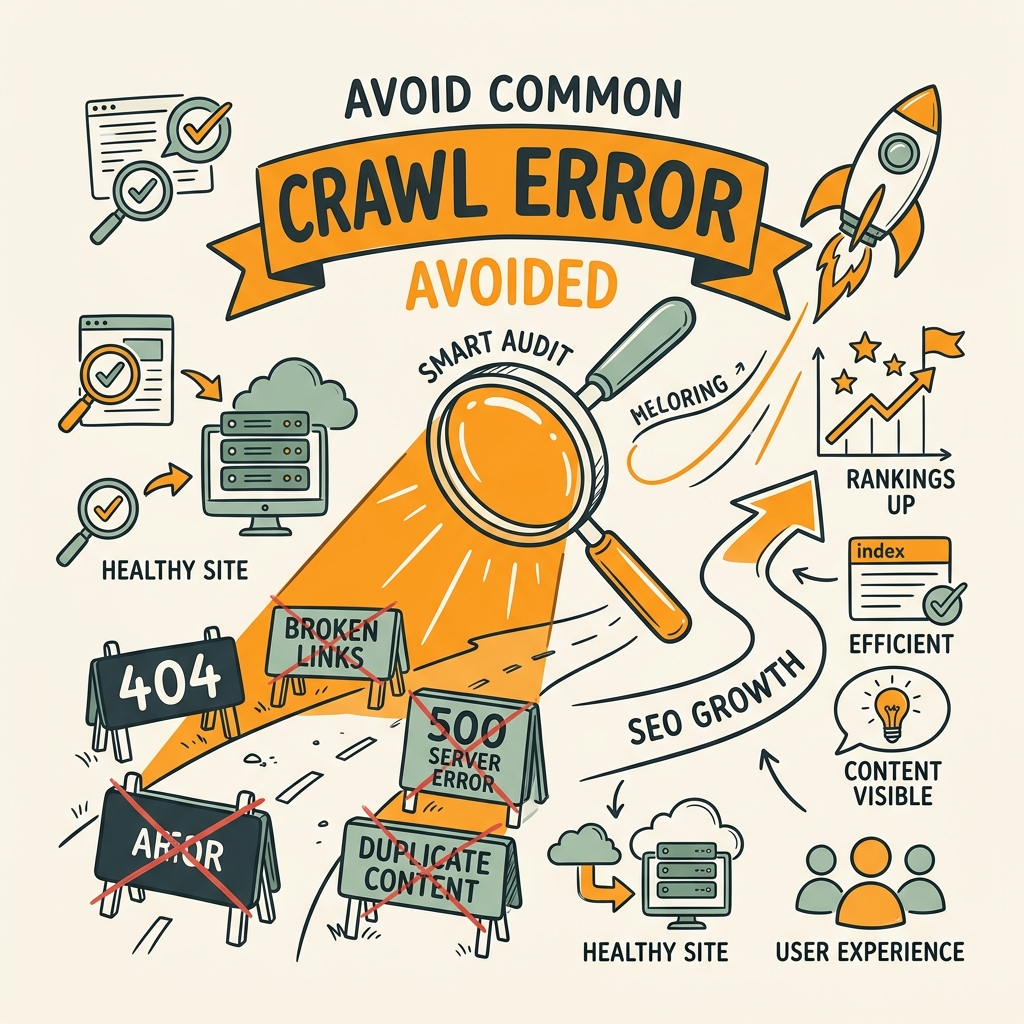
Many teams create their own crawl problems without realizing it. Here are the top mistakes and how to avoid them.
Blocking Crawlers Accidentally with Robots.txt
A typo in robots.txt can block Googlebot from entire sections of your site. If you add a disallow rule without understanding regex, you might accidentally block the wrong URLs. Always test robots.txt changes before deploying to production.
Use Google Search Console's robots.txt tester. Upload your new robots.txt and see what it allows and disallows. If you see a page blocked unintentionally, fix it immediately.
Deleting Content Without Proper Redirects
When you delete a page, always set up a 301 redirect to a related page. Don't just let it 404. A 404 tells Google the page is gone, and the link equity dies with it. A 301 redirect preserves link equity and sends users to relevant content.
If the page had significant backlinks (check Ahrefs or GSC), the 301 redirect is critical. It ensures the link equity flows to your new page and the visitor finds what they need.
Ignoring Redirect Chains and Soft 404s
A soft 404 is a page that returns a 200 status code (success) but has no content — it's effectively a 404 in disguise. Google can't easily identify soft 404s without deeper analysis. If you have pages that are empty templates or thin content with no value, consider whether they should exist at all. If they should, add content. If not, delete them and redirect.
Tools to Automate Crawl Error Detection and Fixing
Manual audits catch errors, but automation prevents them. The best SEO stacks include crawl monitoring from day one.
Google Search Console (Free, Built-In)
Start here. GSC is free and authoritative. It shows you crawl errors, coverage trends, and even URL inspection results. Set up email alerts for critical errors so you're notified the day they happen.
Screaming Frog (One-Time and SaaS)
Screaming Frog crawls your entire site locally and identifies crawl issues, redirect chains, broken links, and duplicate content. It's a must-have for technical SEO audits. The free version handles small sites; the paid spider license ($200/year) is worth it for medium to large sites.
Automated Monitoring with Jottler
For content teams automating their entire SEO workflow, Jottler goes beyond crawl monitoring — it prevents errors by automating content publishing with built-in quality checks. When the platform publishes articles, it automatically verifies that links are functional, sitemaps are updated, and internal linking is optimized. This prevents the broken links and orphaned pages that create crawl errors downstream. The result: your team publishes more frequently without creating technical debt.
| Tool | Best For | Cost | Key Advantage |
|---|---|---|---|
| Google Search Console | First-line diagnosis | Free | Real-time crawl data from Google |
| Screaming Frog | Technical audits | $200/year | Complete site crawl and redirect analysis |
| Jottler | Preventing errors during publishing | $29/mo and up | Automates link verification and sitemap updates as content ships |
Conclusion
Crawl errors are a measurable, fixable problem. The data is clear: fixing critical crawl errors increases organic traffic by 20–35% within 3–6 months, while ignoring them can result in 50% traffic loss. The fix starts with diagnosis (GSC Pages report), moves to prioritization (server errors first), and ends with monitoring (monthly audits).
Your next step: log into Google Search Console, pull the Pages report, and identify your top three error types. If you see server errors, escalate to your devops team today. If you see 404s and orphaned pages, start redirecting or delinking them. If your crawl budget looks low, audit your sitemap and remove duplicate URLs. These three actions will unlock measurable ranking recovery within weeks.
For teams publishing frequently, start your SEO agent today and eliminate the manual crawl audit burden entirely. Jottler automates crawlability checks by verifying links and sitemap integrity as content ships, preventing crawl errors from accumulating in the first place — building quality controls into your publishing pipeline so you recover rankings faster.
FAQs
How long does it take to fix crawl errors and see ranking improvements?
The timeline depends on the error type. Server errors (5xx) should be fixed immediately — they can cut your crawl frequency in half within hours. Once fixed, Googlebot typically resumes normal crawling within 24–48 hours. For URL-level errors like 404s or broken redirects, use GSC's Request Indexing feature to notify Google of the fix. Most pages are recrawled within 24 hours of requesting indexing. Ranking improvements follow as fixed pages get indexed: expect to see organic traffic recovery within 3–6 weeks for critical errors, though high-authority pages may rank faster.
Can crawl errors cause Google to de-index my entire site?
Crawl errors alone won't cause full de-indexing, but widespread server errors (5xx errors across your entire site for days) can severely limit Google's ability to crawl new content. If your server is down for a week, Google will try fewer requests each day, and new content discovery will stall. However, existing indexed pages remain indexed. The bigger risk is that new content goes undiscovered for months because Googlebot's crawl frequency drops, creating a slow-motion ranking penalty. This is why server uptime is critical.
What's the difference between a crawl error and a crawl anomaly?
A crawl error is a specific HTTP status failure: Googlebot tries to access a page and gets a 404, 500, or timeout. A crawl anomaly is a pattern change in crawl behavior — for example, Googlebot suddenly crawling 50% fewer pages than normal, or crawling the same pages repeatedly instead of discovering new content. Anomalies are often caused by server performance issues (slowness, memory limits) or infrastructure changes (IP changes, firewall rules). Search Console alerts you to error spikes but requires manual monitoring to catch anomalies. Check your crawl stats trend monthly to catch anomalies early.